Print slips to PDF
Tax - Print to PDF
Printing slips can be done directly from the CCH iFirm Taxprep module, allowing you to create digital documents that are easily accessible in PDF format. This option is available for the T3 – Trusts and TF – Forms products only.
-
Choose the T3 – Trusts or TF - Forms product, then select the return.
-
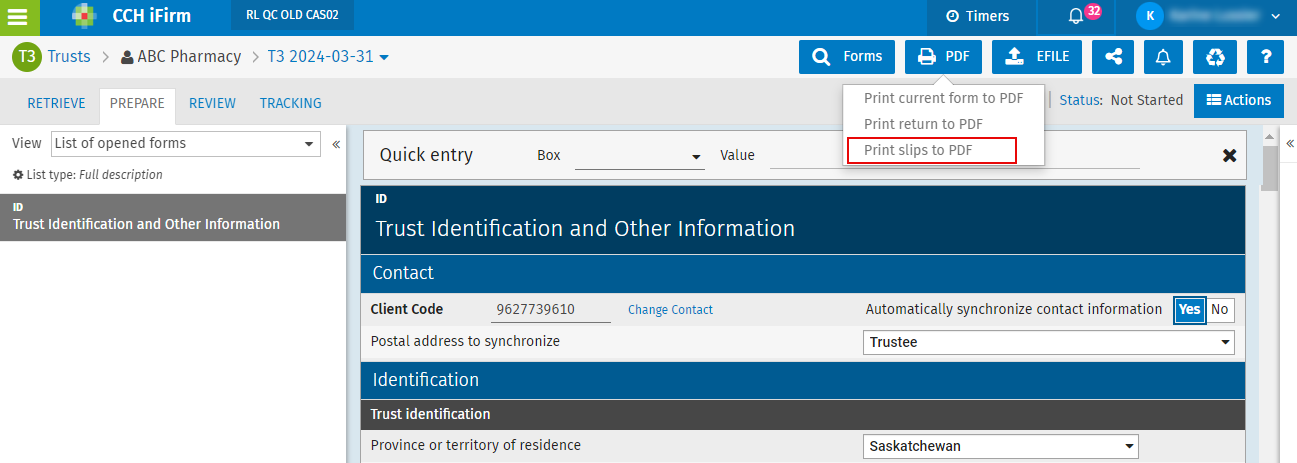
Click the PDF button at the top right corner of the screen, followed by Print slips to PDF.
-
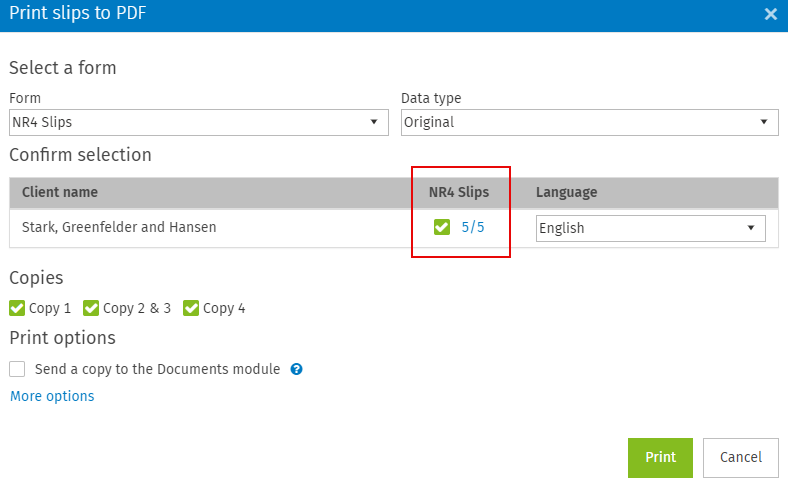
Select the slip to be printed in the Form drop-down list and the data type in the Data type drop-down list.
-
Click the number of slips displayed under the column with the name of the relevant slip.
-
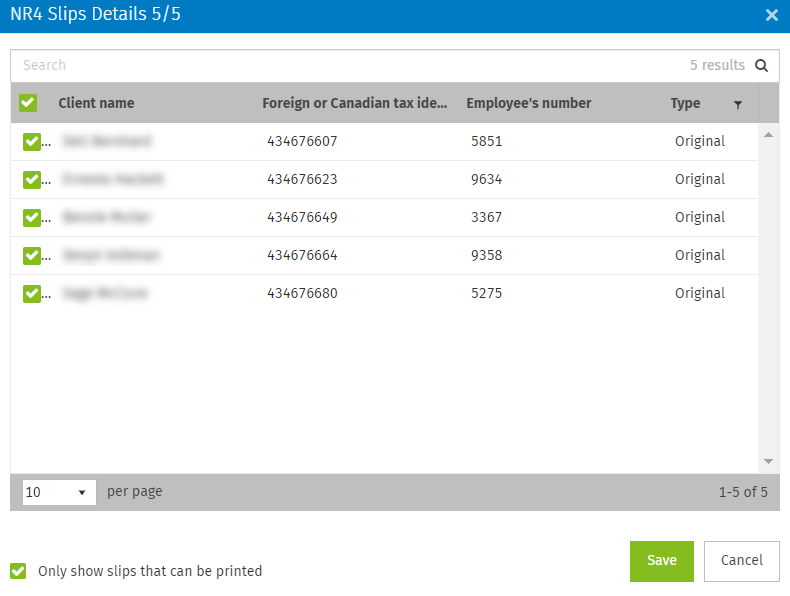
In the Slips Details window, deselect all slips to be excluded from the selection, then click Save. Note that all copies will be selected by default.
-
Select the Send a copy to the Documents module check box if you wish to upload the documents in the tax folder of the current year of the contact(s).
Note: You can choose additional printing options by clicking More options. Select or clear the relevant check boxes from the following options and click Save:
-
Merge PDF files into a single file
-
Use Account number as a password
-
-
Click Print. The printing process will begin in a new window of the web browser.
-
You can also access your PDF file directly from your notifications by clicking the
 icon, then by selecting the element and clicking Download.