Diagnostics
Diagnostics are short messages generated by CCH iFirm Taxprep to indicate potential errors or highlight specific tax situations that may require corrections or additional details. These messages are triggered by incorrect data entry (such as an invalid social insurance number) or as a result of automatic calculations performed by the program.
Content
View a diagnostic in a form
There are two ways to view diagnostics in a form:
-
Option 1:
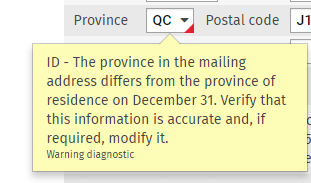
Hover over the field marked with a diagnostic indicator
 . After a brief pause, a tooltip will display the diagnostic message.
-
Option 2:
-
Open the right panel by clicking the
 icon located in the right bottom corner.
 -
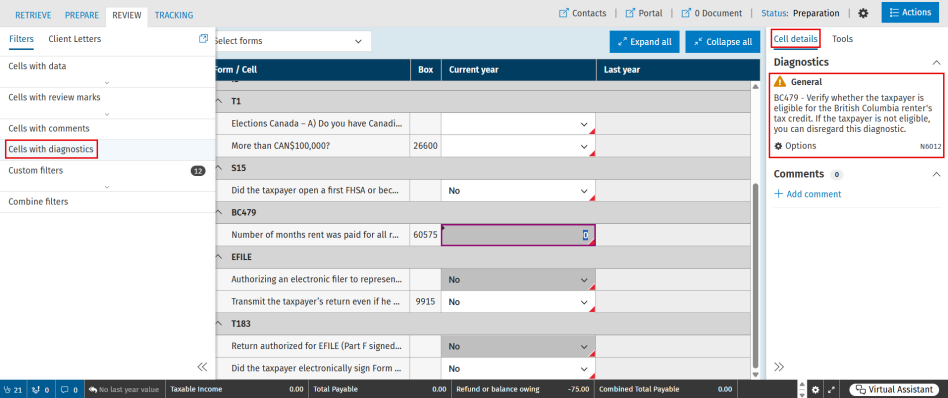
Click the Cell details tab.
-
Click the cell with a diagnostic indicator
.
-
Display the list of diagnostics
Display the list of diagnostics
-
From the return manager, open the desired return.
-
Navigate to the PREPARE tab, then click the
 icon located in the bottom right corner.
 -
The list of diagnostics will appear in either the bottom panel or the left panel, depending on the user’s layout preferences.
 icon, providing additional space or an alternative view as a result.
View the list of cells with diagnostics
-
From the return manager, open the desired return.
-
Go to the REVIEW tab, then select the Filters tab.
-
Click Cells with diagnostics, and a list of all cells that contain diagnostics will be displayed.
-
Open the right panel and click the cell to view its diagnostic message under Cell details.
Show and hide a diagnostic
To hide a diagnostic:
-
Display the list of diagnostics.
-
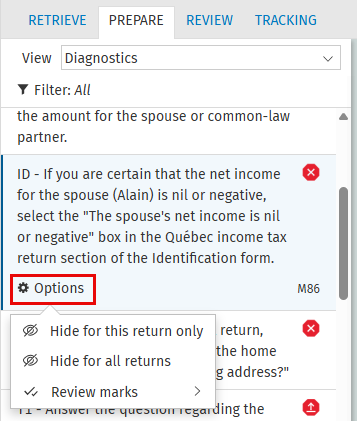
Diagnostics displayed in the left panel:
Right-click the diagnostic to be hidden or select it and click Options.
-
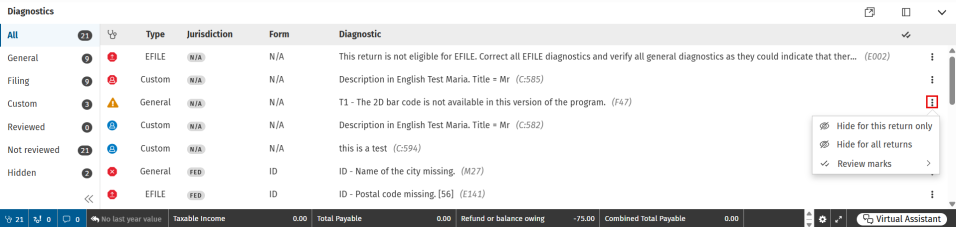
Diagnostics displayed in the bottom panel:
Click the three dots beside the diagnostic.
-
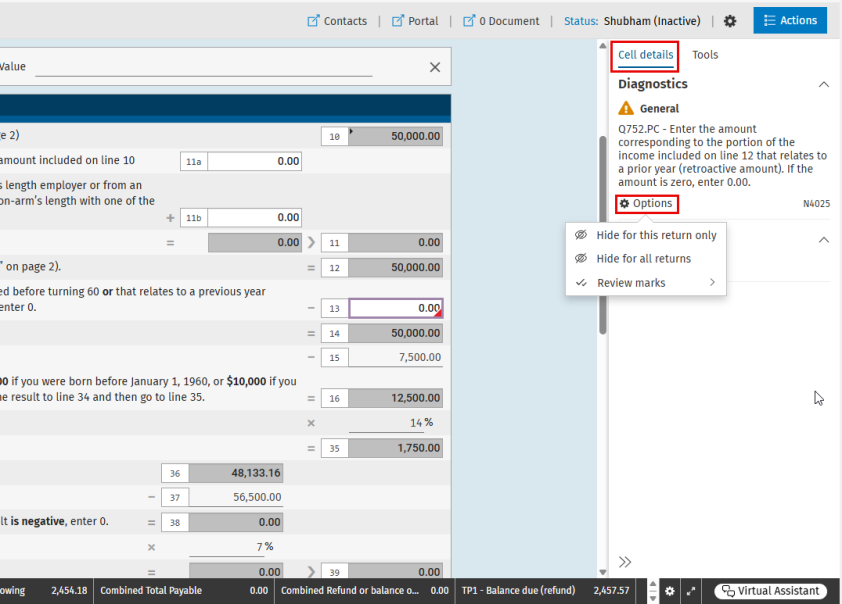
Diagnostic displayed in the right panel, under the Cell details tab:
Click Options.
-
-
Select Hide for this return only or Hide for all returns. The diagnostic is then transferred to the Hidden filter.
To show a previously hidden diagnostic:
-
Display the list of diagnostics.
-
Diagnostics displayed in the left panel:
-
From the Filters drop-down menu, select Hidden.
-
Right-click the diagnostic or select it and click Options.
-
-
Diagnostics displayed in the bottom panel:
-
From the filters located on the left, click the Hidden tab.
-
Click the three dots beside the diagnostic.
-
-
-
Depending on the way the diagnostic was hidden, select either Show for this return only or Show for all returns to restore the diagnostic.
Types of diagnostics
Here are the different types of diagnostics in the CCH iFirm Taxprep return manager:

|
Error | Enter or modify data to ensure the return will not be rejected. |

|
Warning | Review the data entered and make corrections where necessary. |

|
Information | Consult the brief explanations relating to calculation optimizations performed by the CCH iFirm Taxprep return manager and review the suggested tips to further optimize certain tax situations. Take these tips into consideration, if applicable. |

|
Filing errors | Errors have been detected, and you should modify the data entered in order for the return to be eligible for electronic transmission. |

|
Warning with regards to filing | The return is eligible for electronic transmission. However, verify that the information entered is accurate to prevent the return from being rejected. |
All: Shows all diagnostics in the taxpayer’s return, except those previously hidden.
General: Displays diagnostics related to tax errors, such as calculation mistakes.
Filing: Displays diagnostics related to electronic transmission issues, such as a missing EFILE number in the settings, and filing issues, such as barcode errors.
Custom: Lists custom diagnostics created by your firm.
Reviewed: Displays diagnostics that have been reviewed and resolved.
Not reviewed: Displays diagnostics that have not yet been addressed.
Hidden: Shows all diagnostics that you have previously hidden.
Correct an error detected by a diagnostic
Correct an error directly from a form
-
Select the cell with a diagnostic indicator
.Click here for instructions on viewing the diagnostic message.
-
Read the explanation provided by the program.
-
Enter the data required to resolve the diagnostic.
Correct an error from the Diagnostics panel
-
Select the diagnostic you want to correct.
-
If a specific cell must be modified, the CCH iFirm Taxprep return manager will automatically place the cursor in that cell. Otherwise, read the diagnostic message carefully and follow the suggested steps.