Using conditions
Conditions enable the user to build client letter templates, which display certain subsections depending on the tax status of a given tax return. Conditions are then assessed when printing or previewing so that only the subsections regarding the tax status of the return appear.
Conditional blocks
A conditional block is a subsection that only appears in a letter when certain conditions have been met.
A conditional block starts with the instruction [IF THEN] and ends with the instruction [END]. The intermediate instructions [ELSE] and [ELSE IF THEN] are used to create conditions on several levels.
The following example illustrates the various elements that make up a conditional block:
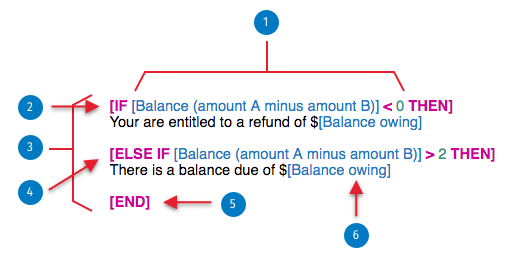
- The first condition in this block contains three elements:
- The cell [Balance (amount A minus amount B)], which is the first comparison value.
- The "less than" (<) operator.
- The numeric value 0, which is the second comparison value.
In an actual letter, the condition may be far more complex and include several tax fields and operators.
- The expression [IF ... THEN] is a starting point in a conditional block.
- The conditional block is defined by the instructions [IF ... THEN] and [END].
- The [ELSE IF ... THEN] expression is only executed if the previous expression [IF ... THEN] and any other previous [ELSE IF ... THEN] expressions are assessed to be false, and your [ELSE IF ... THEN] expression is deemed to be true.
- The [END] expression is the final element in the conditional block.
- The [Balance owing] field is used to print the amount of the cell if the condition in the [ELSE IF … THEN] expression is true. The entire paragraph will be printed, including the value in the [Balance owing] cell.
Conditions with several levels
Using the [ELSE] and [ELSE IF ... THEN] expressions, you can insert a condition within a condition. You can then specify a general condition, then define the subsections within the general condition, which must meet an additional condition.
Inserting a condition
To create a condition, please proceed as follows:
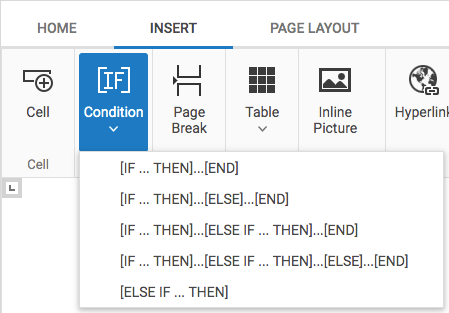
- 1. Enter the instructions for the condition desired (e.g., [IF THEN]), or use one of the already created conditional blocks, which you can access in two different ways:
- by clicking Insert Condition from the shortcut menu; or

- by clicking the Insert tab on the toolbar in the letter editor, then clicking Condition.
- by clicking Insert Condition from the shortcut menu; or
- Insert a cell and set a condition:
- Select the logical operator.
- Select the comparison operator (only compatible operators will appear).
- Enter a comparison value.
- Click Insert.
- To insert several conditions, repeats steps 1 and 2.
Deleting a condition
To delete a condition or an entire conditional block, please proceed as follows:
- For a condition, select the text after [IF, and select until THEN]. For a conditional block, select the [IF … THEN] expression at the beginning of the block, then extend the selection until the end of the expression [END].
- Press Del or Backspace on your keyboard.
Be careful, since deleting an [IF ...] instruction without deleting the corresponding [END] instruction (and vice versa) may generate errors when displaying or printing the letter.